Overview
The FusionUC app allows you to make and receive calls, send messages, and access voicemail from your mobile device using your IntelliVoice business phone system. Follow these steps to set up the app for the first time.
Step-by-Step Setup Guide
Step 1: Visit the IntelliVoice Website
Open a web browser on your computer or mobile device and navigate to intellivoice.us.
Step 2: Access the FusionUC Portal
Click on the FusionUC Portal link at the top of the page. This will take you to the login page for your phone system management portal.

Step 3: New User Setup
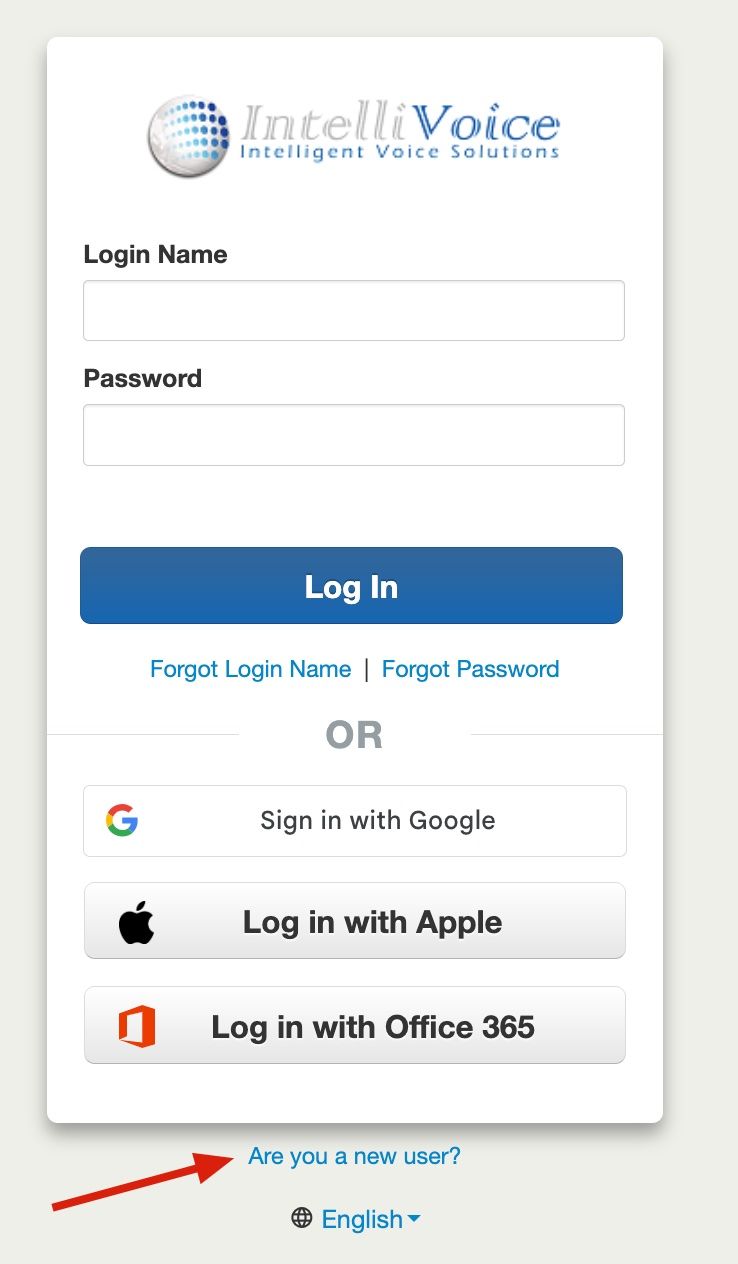
If you are a new user, click on "Are you a new user?" to begin setup. Note: You can skip to Step 5 if you have already received an email from IntelliVoice with subject "Your New Phone System Account".
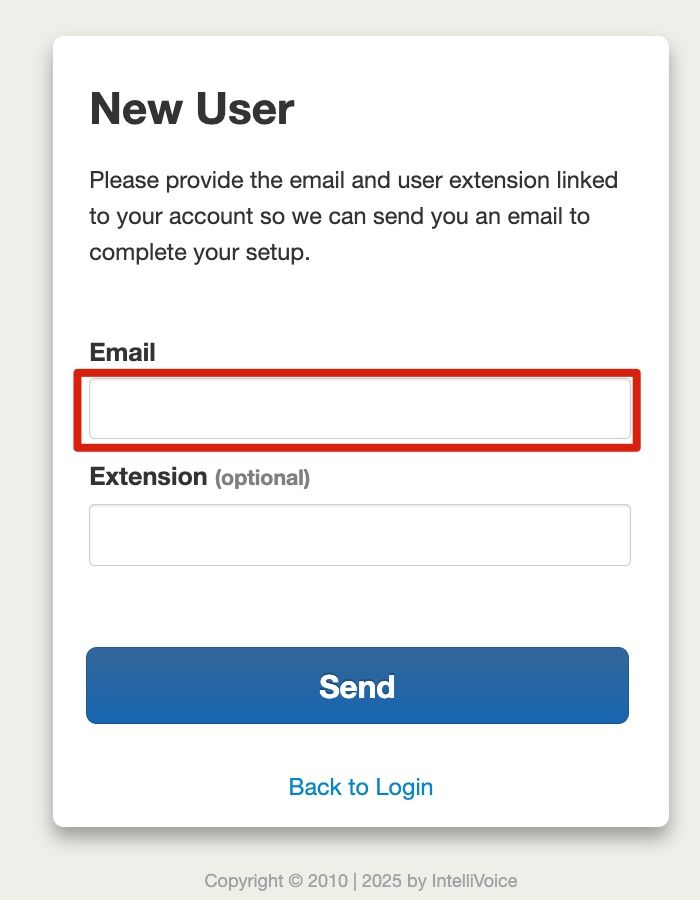
Next, enter your email address and click Send.
Step 4: Check Your Email
You will receive a welcome email from IntelliVoice containing your login credentials and setup instructions. Check your inbox (and spam folder if necessary) for an email from the IntelliVoice system.
Step 5: Complete Account Setup
Follow the link in the welcome email to complete your account setup. You will be prompted to:
- Create a secure password for your portal account
- Set up a voicemail PIN (typically 4-6 digits)
- Configure your initial voicemail greeting
Step 6: Download the FusionUC App
Download the FusionUC app from your device's app store:

- iOS (iPhone/iPad): Search for "FusionUC" in the Apple App Store
- Android: Search for "FusionUC" in the Google Play Store
Step 7: Log In to the App
Open the FusionUC app and enter your credentials:
- Enter your email address or username
- Enter the password you created during account setup
- Your server address should be pre-configured; if prompted, contact your administrator
Step 8: Accept Permissions
When prompted, accept the necessary permissions for the app to function properly:
- Microphone: Required for making and receiving calls
- Contacts: Optional, allows you to see caller names from your phone contacts
- Notifications: Required to receive incoming call alerts
- Phone: Required for call functionality on Android devices
Troubleshooting
If you encounter any issues during setup:
- Verify your internet connection is stable
- Ensure you are using the correct email address associated with your extension
- Check that you have entered your password correctly (passwords are case-sensitive)
- Restart the app and try again
Need Help?
If you continue to experience problems with your FusionUC app setup, please contact our support team:
Email: [email protected]
Phone: (772) 228-3088