Overview
This guide covers the most common FusionFAX issues and how to resolve them. FusionFAX is IntelliVoice's cloud fax service, supporting fax-to-email, email-to-fax, and connection of physical fax machines via an ATA. If you can't resolve an issue with the steps below, contact IntelliVoice Support.
Before You Begin
A few quick checks resolve most fax problems before deeper troubleshooting:
- Confirm the fax number and country/area code are correct and formatted as required.
- Check the recipient's line — is it a working fax machine, and is it busy or off?
- Verify your FusionFAX account is active and not over any page/usage limit.
- Try a single-page test fax to a known-good number to isolate the issue.
Faxes Won't Send
If outbound faxes fail, are stuck "in progress," or return a failure notice:
- Recipient line issues — busy, no answer, or not a fax machine. Retry later or confirm the number.
- Document format — use a supported file type (e.g., PDF, TIFF, DOC/DOCX). [Add: supported formats + size limits]
- Cover page / formatting errors — [Add: cover page requirements]
- Retry behavior — [Add: how many auto-retries and over what interval]
[Add the exact failure codes/messages customers see and what each means.]
Faxes Won't Receive
If inbound faxes aren't arriving:
- Delivery address — confirm the destination email(s) on the fax number are correct.
- Spam / junk folder — inbound fax emails may be filtered; whitelist the FusionFAX sender.
- Number status — verify the DID is provisioned and pointed to your account.
- Sender-side issues — the sending fax may be failing on their end.
Fax-to-Email & Email-to-Fax Delivery
For notification/delivery problems with the email side of FusionFAX:
- Authorized sender addresses — email-to-fax typically only accepts faxes from pre-authorized addresses. [Add how to add addresses]
- Attachment handling — [Add: supported attachment types and how the subject/body map to the fax]
- SPF / email authentication — delivery failures can stem from mail authentication. See SPF record for email-to-fax.
Garbled, Partial, or Poor-Quality Faxes
If pages come through blank, cut off, streaked, or unreadable:
- Source document quality — low-resolution or heavily compressed files render poorly.
- ECM (Error Correction Mode) — [Add: when to enable/disable ECM]
- Line quality — noisy lines cause dropped/garbled pages; [Add carrier/line guidance]
Physical Fax Machine / ATA Issues (T.38)
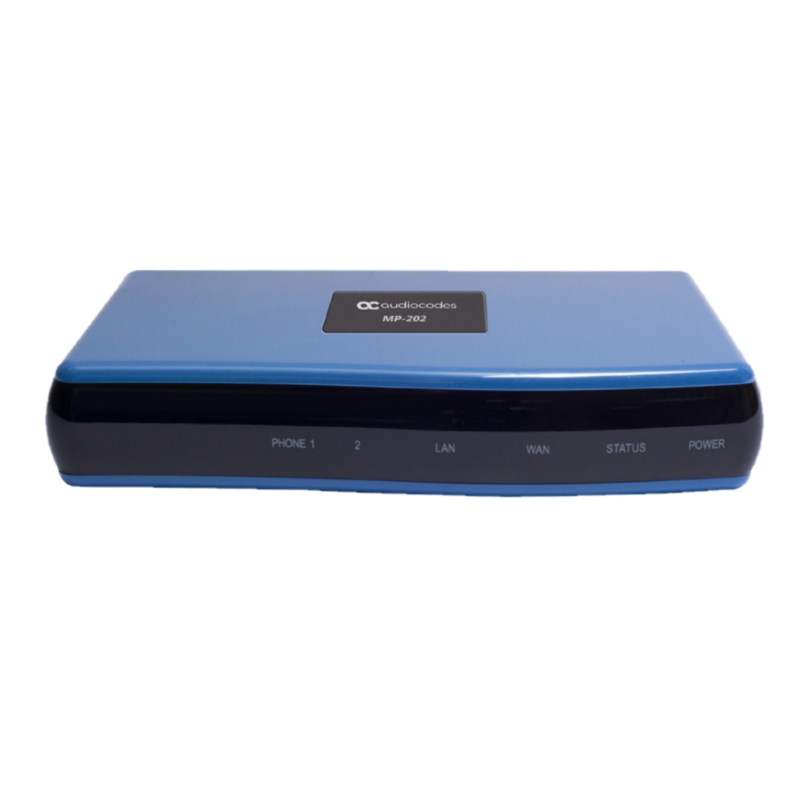
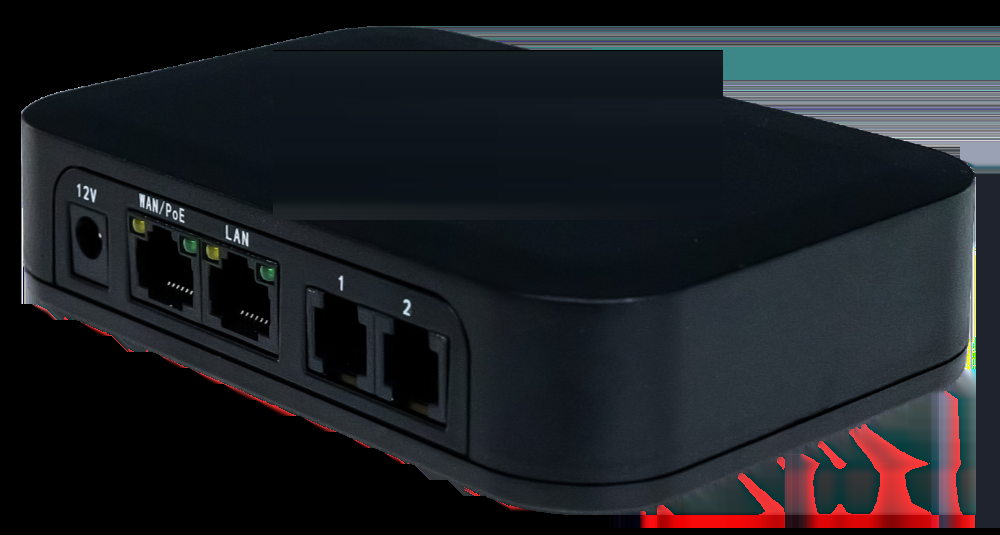
When a physical fax machine is connected to FusionFAX through an analog telephone adapter (ATA):
- T.38 vs. G.711 pass-through — [Add recommended fax transport and ATA settings]
- Baud rate — reduce the fax machine's speed (e.g., to 9600 bps) if pages fail.
- ATA configuration — [Add the specific ATA fax settings IntelliVoice recommends]
- SIP ALG — disable SIP ALG on the firewall (see VoIP firewall troubleshooting).
Still Need Help?
If the fax still isn't working after these steps, gather the following before contacting support to speed up resolution:
- The fax number(s) involved (sending and receiving)
- Date/time of the attempt and any error message or failure code
- A sample of the document being faxed (if quality-related)
- Whether it's fax-to-email, email-to-fax, or a physical machine/ATA